Cudy WR3000P
Specifications§
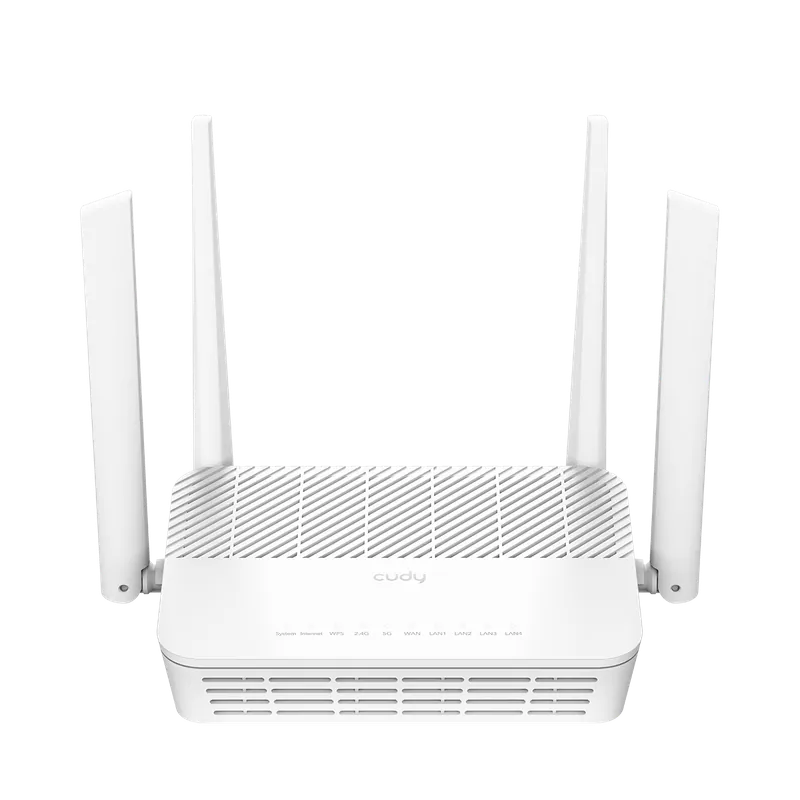
- Processor
- MediaTek MT7981B, aarch64, 1300 MHz
- Flash memory
- 128 MB NAND
- RAM
- 512 MB DDR4
- Ethernet
- 4 × 1G LAN + 1 × 2.5G WAN
- USB
- 1 × USB 2.0
- Wi-Fi chip
- MediaTek MT7976CN
- Wi-Fi 5 GHz
- AX, 160MHz, 2x2, 2402MB/s, 1024QAM
- Wi-Fi 2.4 GHz
- AX, 40MHz, 2x2, 574MB/s, 256QAM
Build features§
- FunctionalityExcept:
Cloud services
Components - Factory resetWith the Reset button
- WPS buttonYes
- LEDsYes
- Mesh compatibilityWith original devices and clones
- Built-in storage70.9 MB, Entware can be installed
- Modem rebootWorks without a hardware mod
Preparing for flashing§
- Download and unpack the firmware archive In the panel under the device name, pick your system: Windows, macOS or Linux. Starting the installer on macOS and Linux.
- Connect the router to the computer with a cable (Ethernet) Flashing over Wi-Fi is not possible.
About the flasher program
Cudy_WR3000P_flasher creates backups, prepares the EEPROM, generates new service data and installs the firmware. When it finishes, the router reboots automatically.
Installing from stock firmware§
- Installing OpenWrt From the factory firmware, install OpenWrt with the file from the archive:
Cudy_WR3000P-v1-sysupgrade.bin. - Uploading the image In the OpenWrt web interface, upload
default-openwrt.binas an update. - Flashing After the reboot, run
Cudy_WR3000P_flasher, click “Install” and wait until it finishes. - System start The device starts within ~3 minutes.
Done!
Router access
- Web interface
- 192.168.1.1
- Login
admin- Password
12345678- Wi-Fi password
12345678
Updating the firmware§
To update, use the Athena bootloader or KeenKit.
Since version 5.0.7 the firmware can also be updated through the web interface.
Reverting to stock firmware§
The revert is done from a full backup through the Athena bootloader. The steps are in the instructions for MT7981.