Xiaomi AX3000T
Specifications§
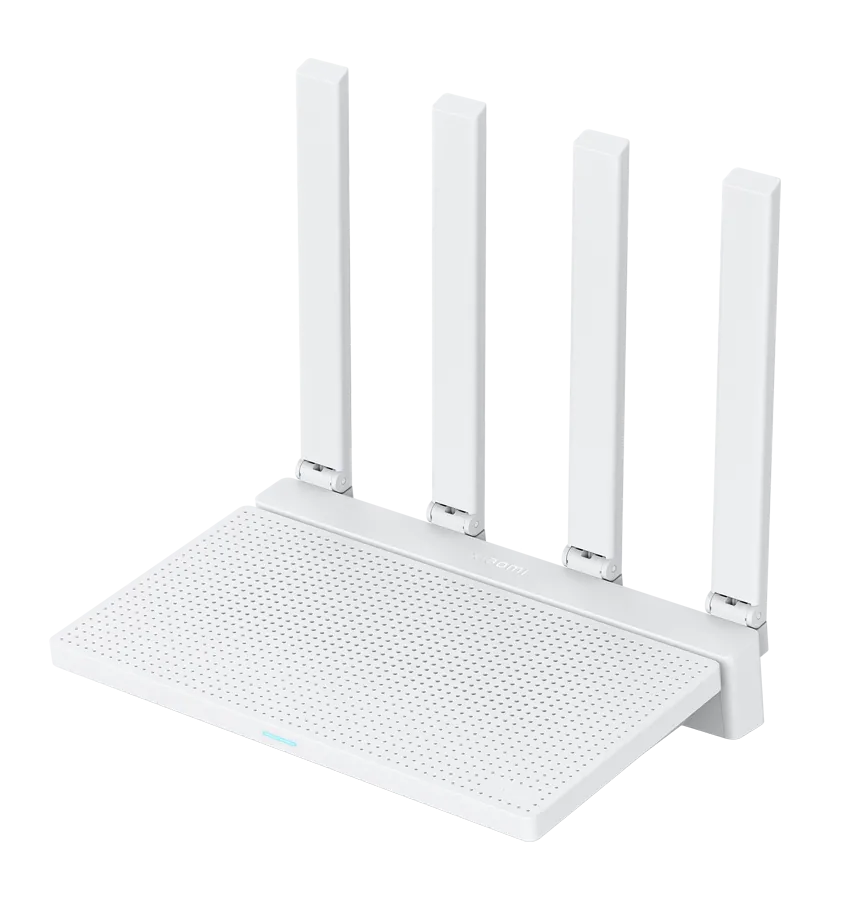
- Processor
- MediaTek MT7981B, aarch64, 1300 MHz
- Flash memory
- 128 MB NAND
- RAM
- 256 MB DDR3
- Ethernet
- 4 × 1G LAN
- USB
- none
- Wi-Fi chip
- MediaTek MT7976CN
- Wi-Fi 5 GHz
- AX, 160MHz, 2x2, 2402MB/s, 1024QAM
- Wi-Fi 2.4 GHz
- AX, 40MHz, 2x2, 574MB/s, 256QAM
Build features§
- FunctionalityExcept:
Cloud services
Components - Factory resetWith the Reset button
- Mesh buttonYes
- LEDSystem
Internet connected - Mesh compatibilityWith original devices and clones
- Built-in storage48.3 MB, Entware can be installed
Preparing for flashing§
Before flashing, make sure that
- The stock firmware version on the router is below 1.0.90.
- The production date allows flashing (see the table below). Routers with an unsuitable date are not supported and will not be.
- Both memory models — ESMT and Winbond — are supported, there is no need to check the installed memory.
- You alone are responsible for your device.
-
Check the production date It is printed on the sticker on the router's box.
Device version Allowed production date 🇨🇳 Chinese up to 2024.06 inclusive 🌍 Global up to 2024.12 inclusive -
Download and unpack the firmware archive In the panel under the device name, pick your system: Windows, macOS or Linux. Starting the installer on macOS and Linux.
-
Connect the router to the computer with a cable (Ethernet) Flashing over Wi-Fi is not possible.
Installing from stock firmware§
- Factory reset Reset the router to factory settings.
- Initial setup Go through the setup wizard and set a password for the web interface — remember it.
- First script Run
ax3000t-ssh.exe(Windows only) and enter the password you set. If Windows Firewall asks for access, allow it for private networks. Wait for “DONE! SSH access is open” and press Enter — the router does not reboot. - Second script Run
Xiaomi_AX3000T_flasher. Click “Install” and wait until it finishes — the router reboots with the new firmware automatically.
Done!
Router access
- Web interface
- 192.168.1.1
- Login
admin- Password
12345678- Wi-Fi password
12345678
Reducing RAM usage (optional)
To reduce RAM usage, you can turn off WHNAT hardware acceleration — more details. Enter the commands in the router's CLI one at a time:
interface WifiMaster1 no whnatsystem configuration save
Updating the firmware§
To update, use the Athena bootloader or KeenKit.
Since version 5.0.7 the firmware can also be updated through the web interface.
Reverting to stock firmware§
The revert is done from a full backup through the Athena bootloader. The steps are in the instructions for MT7981.